Capture One has received another major update that finally introduces a long-requested feature: the ability to combine different types of masks within a single adjustment layer. AI masks can now detect clothing, and the set of AI retouching tools for portrait photography has been expanded. As usual, the update also includes new camera and lens support, along with various smaller improvements.
Combining multiple masks in a single layer
The biggest new feature is undoubtedly the ability to combine multiple masks within one layer — finally removing a limitation that has long complicated many edits. Capture One has caught up with its competitors in this area and offers similar flexibility. The updated Layers & Masks tool includes a new Combine Masks button, which adds a mask to an existing layer:
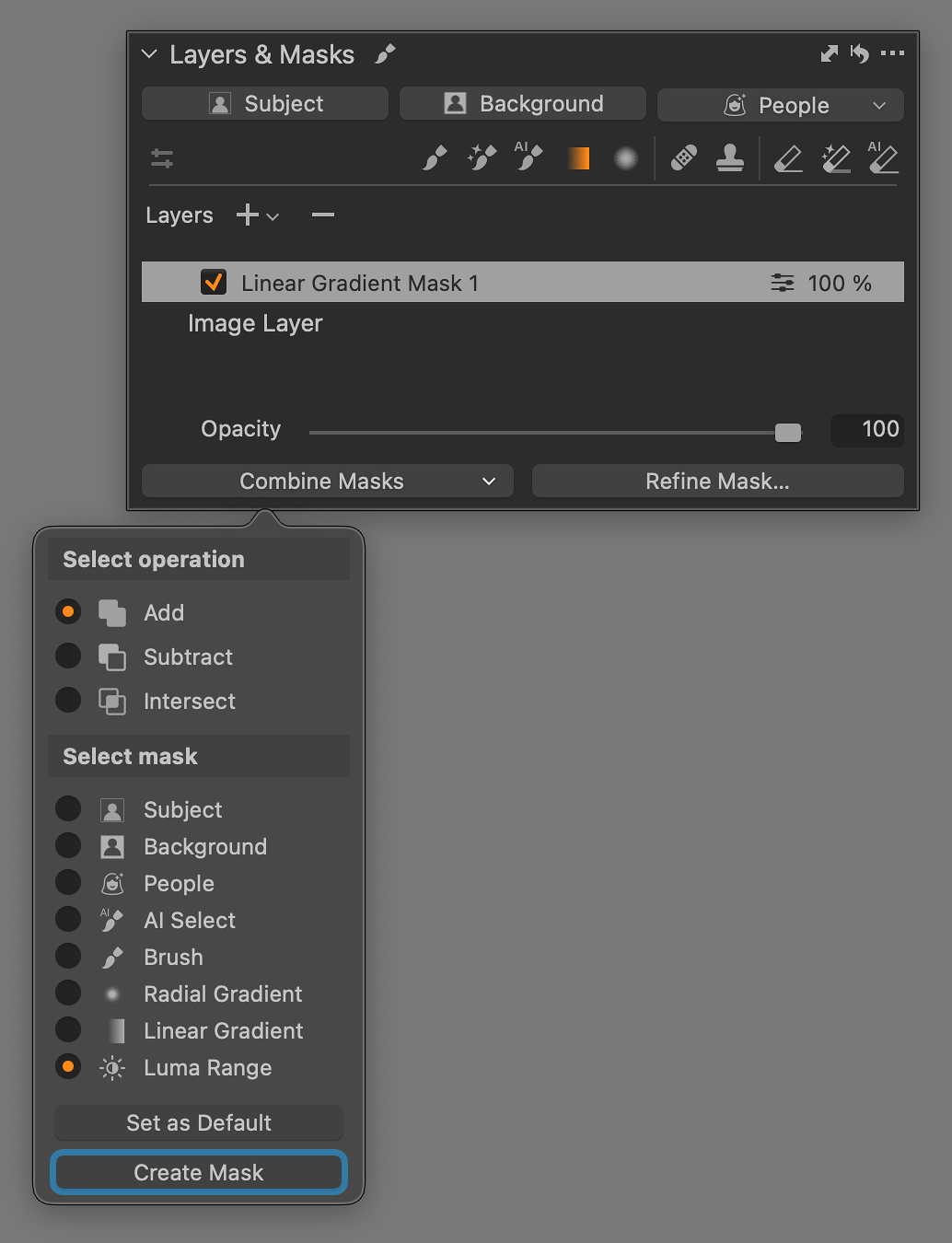
The menu includes three interaction modes between the existing and the new mask (Select operation):
- the Add operation combines the masks, meaning that the layer’s adjustments will apply to areas covered by either mask — both the original and the newly added one.
- the Subtract operation removes the new mask area from the original, effectively acting like an eraser.
- the Intersect operation applies adjustments only where both masks overlap.
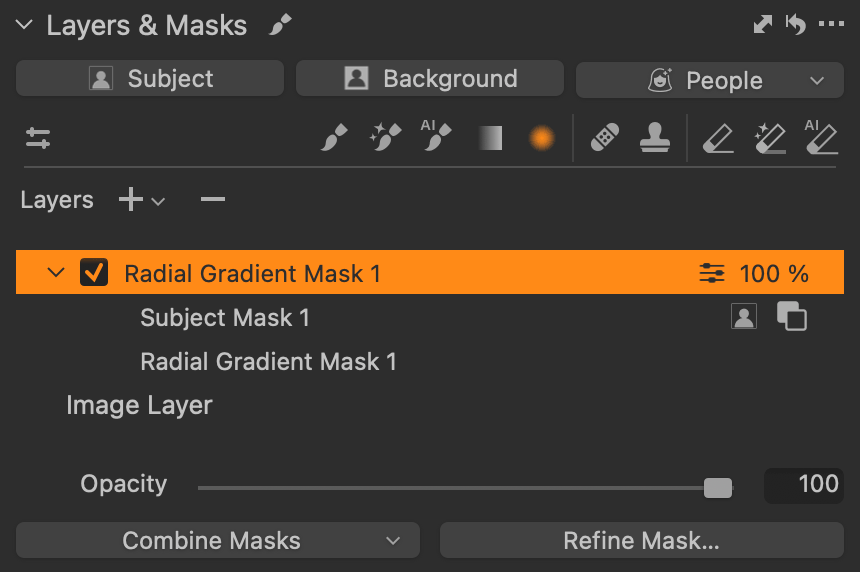
The second part of the menu lets you choose which mask type to add (Select mask). Some options immediately create a mask (Subject, Background), some require additional input (for example, People asks which parts to include — face skin, body skin, hair, etc.), and others simply create an empty mask and activate the corresponding tool (AI Select, Brush, Radial Gradient, Linear Gradient). The Luma Range tool, which creates a luminosity mask, has now also been moved to this menu. It’s most often used in Intersect mode, where the resulting mask is a combination of the original one and the selected brightness range.
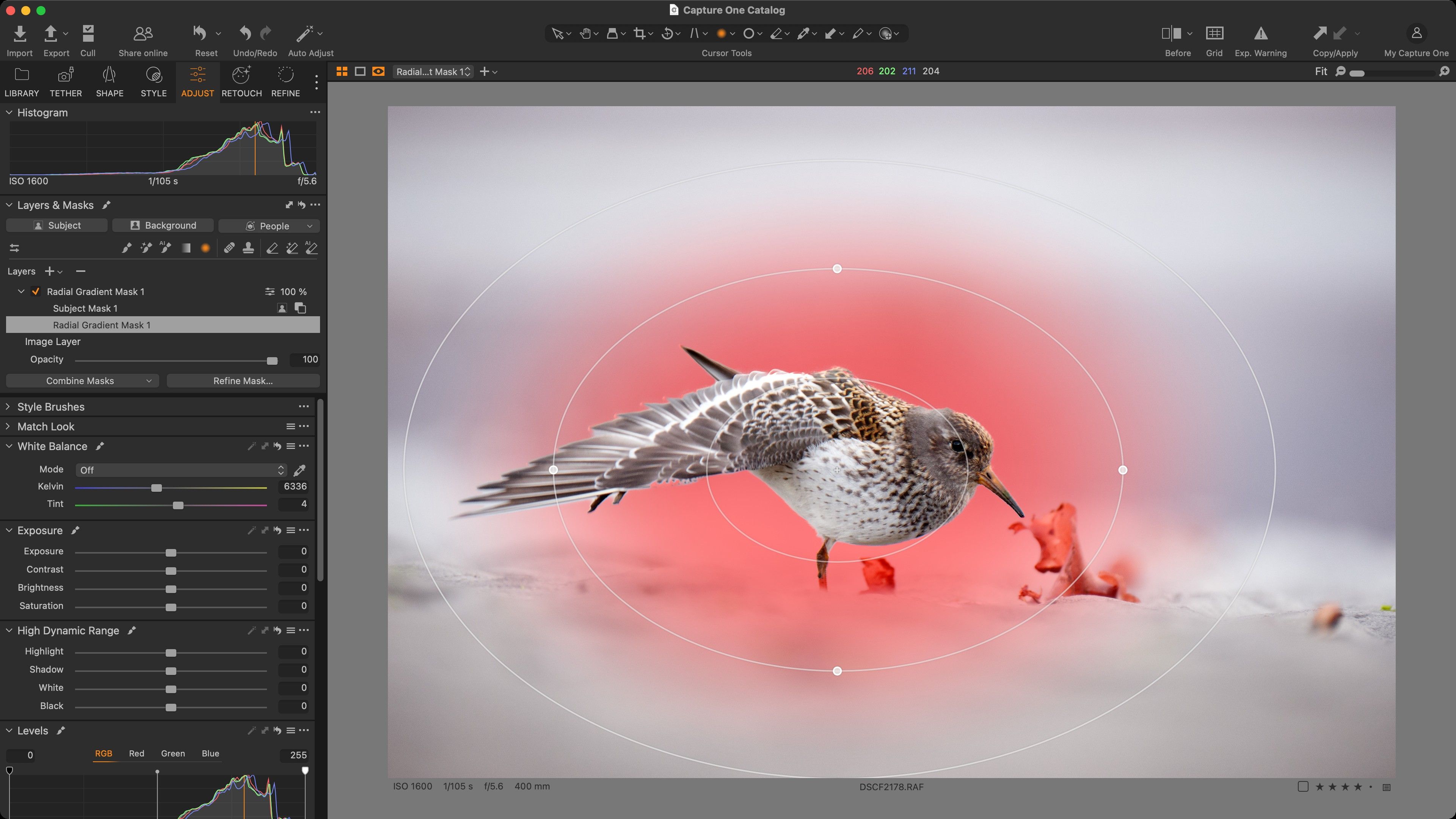
Layers with combined masks can be expanded in the Layers & Masks tool, revealing the individual masks along with the corresponding operation symbol (add, subtract, intersect).
Unfortunately, Capture One still lacks a straightforward way to limit selections based on color range, although the new mask concept clearly opens the door for it — it would likely work similarly to how Luma Range currently limits brightness values. Hopefully, this will appear in future versions.
AI retouching tools for teeth and eyes
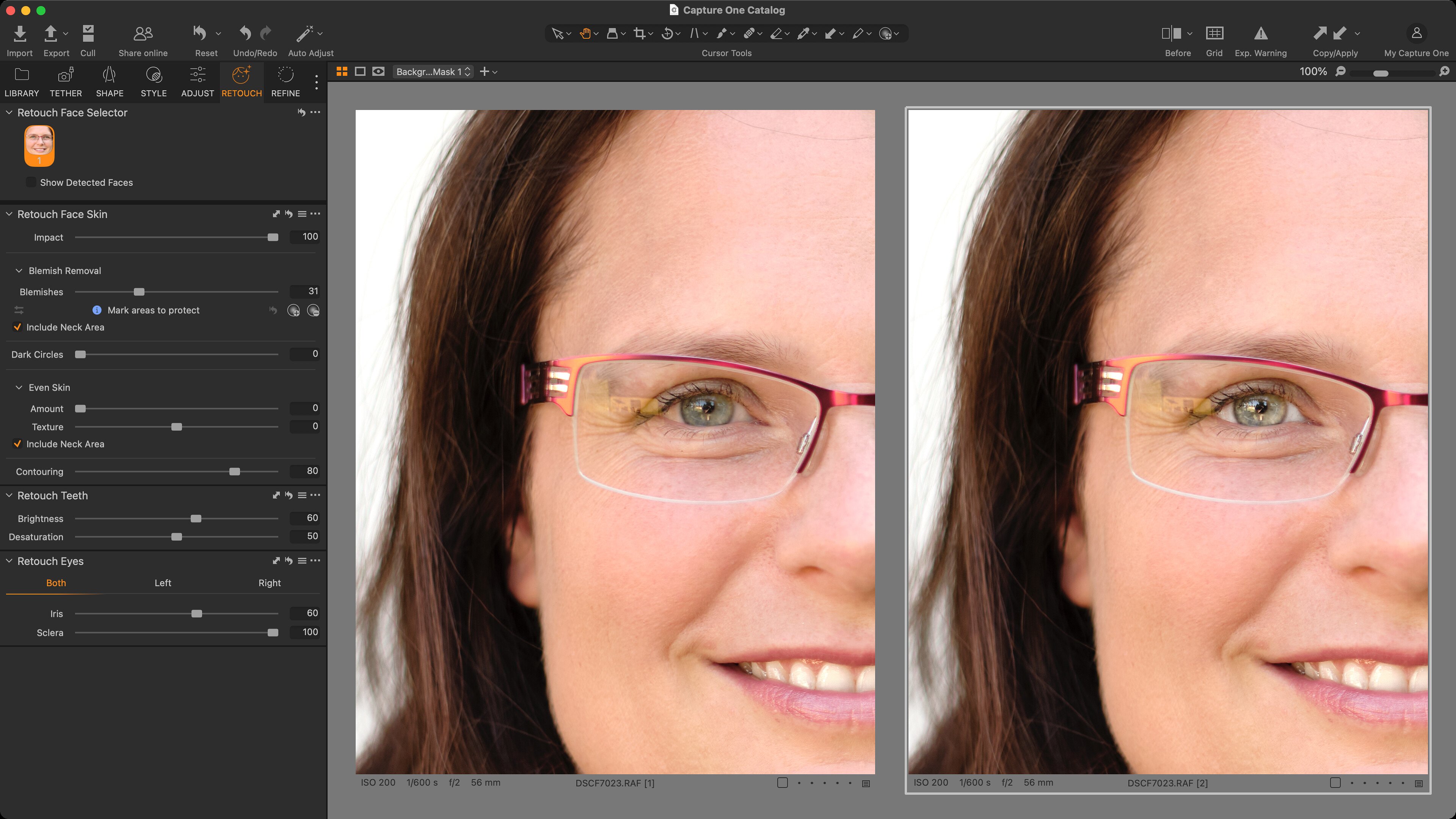
The Retouch tab in the side panel has been updated with two new tools. The previous Retouch Faces tool has been split into two tools:
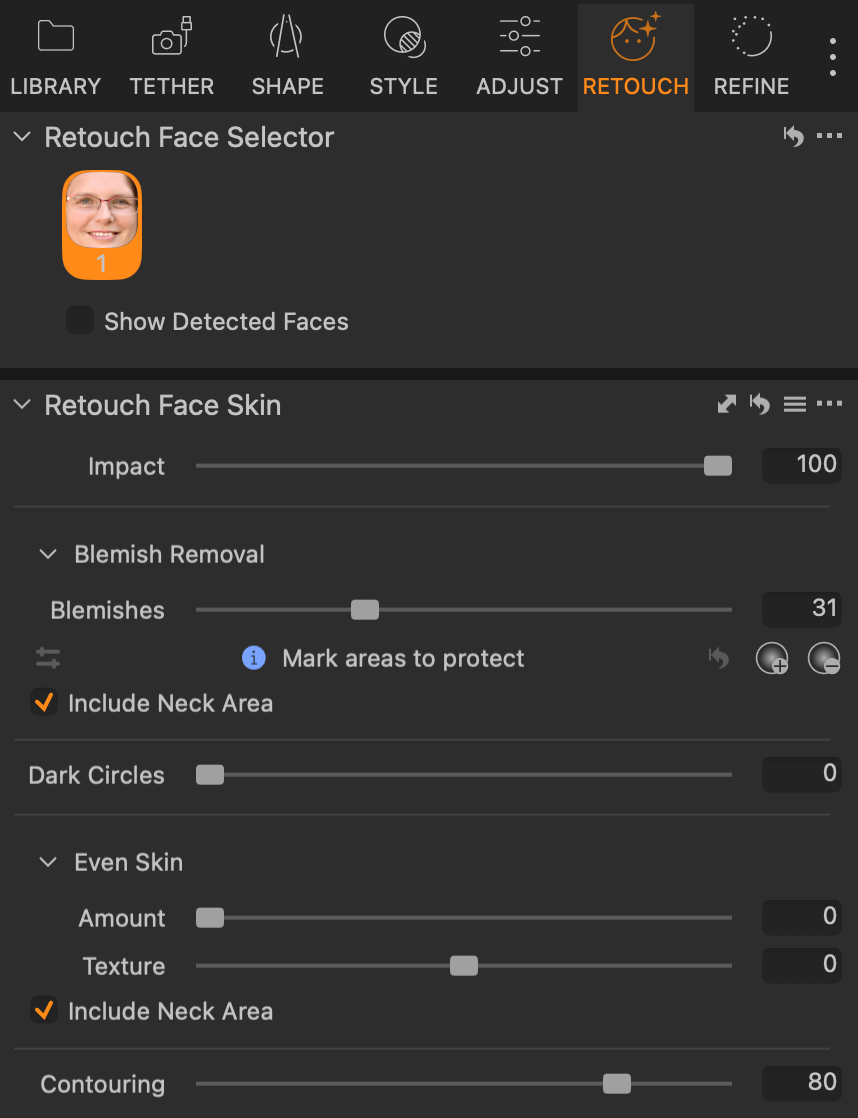
- Retouch Face Selector is used to select which face in the image you want to edit.
- Retouch Face Skin contains the actual skin-retouching options known from earlier versions — removing blemishes and dark circles, evening out skin tones, and contouring. New in version 16.7 is the ability to include or exclude the neck area (Include Neck Area checkboxes).
The first entirely new tool is Retouch Teeth:

It allows you to adjust the Brightness and reduce Saturation (i.e., remove color tint) of the teeth. Like Retouch Face Skin, the tooth selection is fully automatic, and if you need to adjust multiple people differently, the selection is managed through the Retouch Face Selector tool.
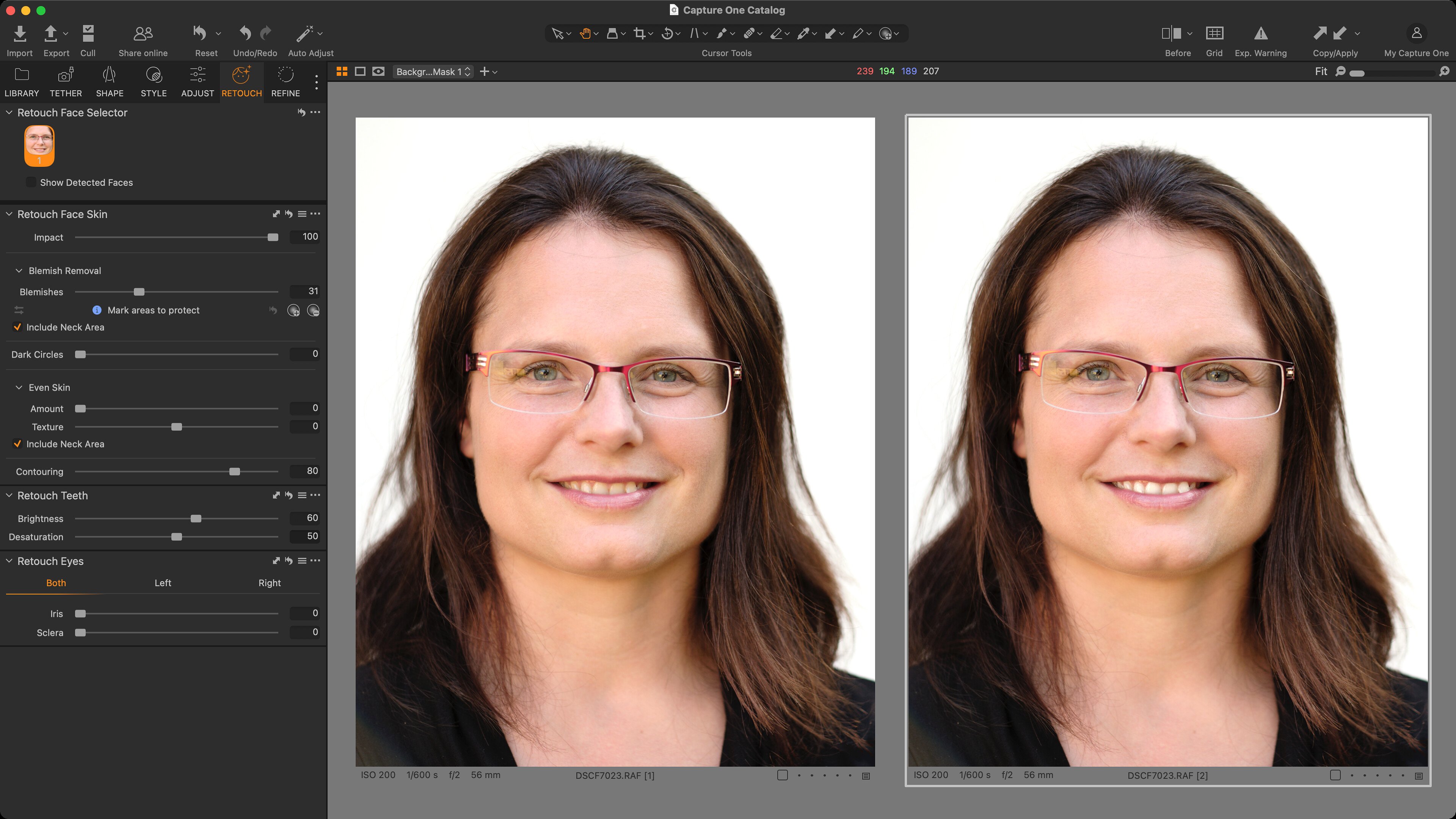
The second new addition in the Retouch tab is Retouch Eyes:
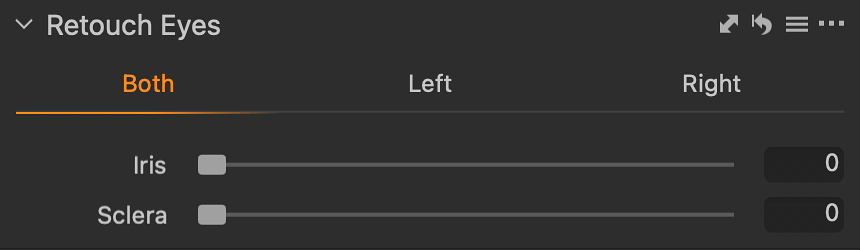
This tool offers separate sliders for the Iris and Sclera. Adjusting the iris increases brightness and contrast without significantly affecting color saturation. Adjusting the sclera brightens and optionally desaturates it. The tool preserves fine details, such as small veins, which helps maintain a realistic appearance. Eye detection is once again fully automatic. You can fine-tune the intensity separately for the left and right eye (Left and Right tabs), and — just like with the other tools — make independent adjustments for multiple subjects in a photo via the Retouch Face Selector.
Other improvements
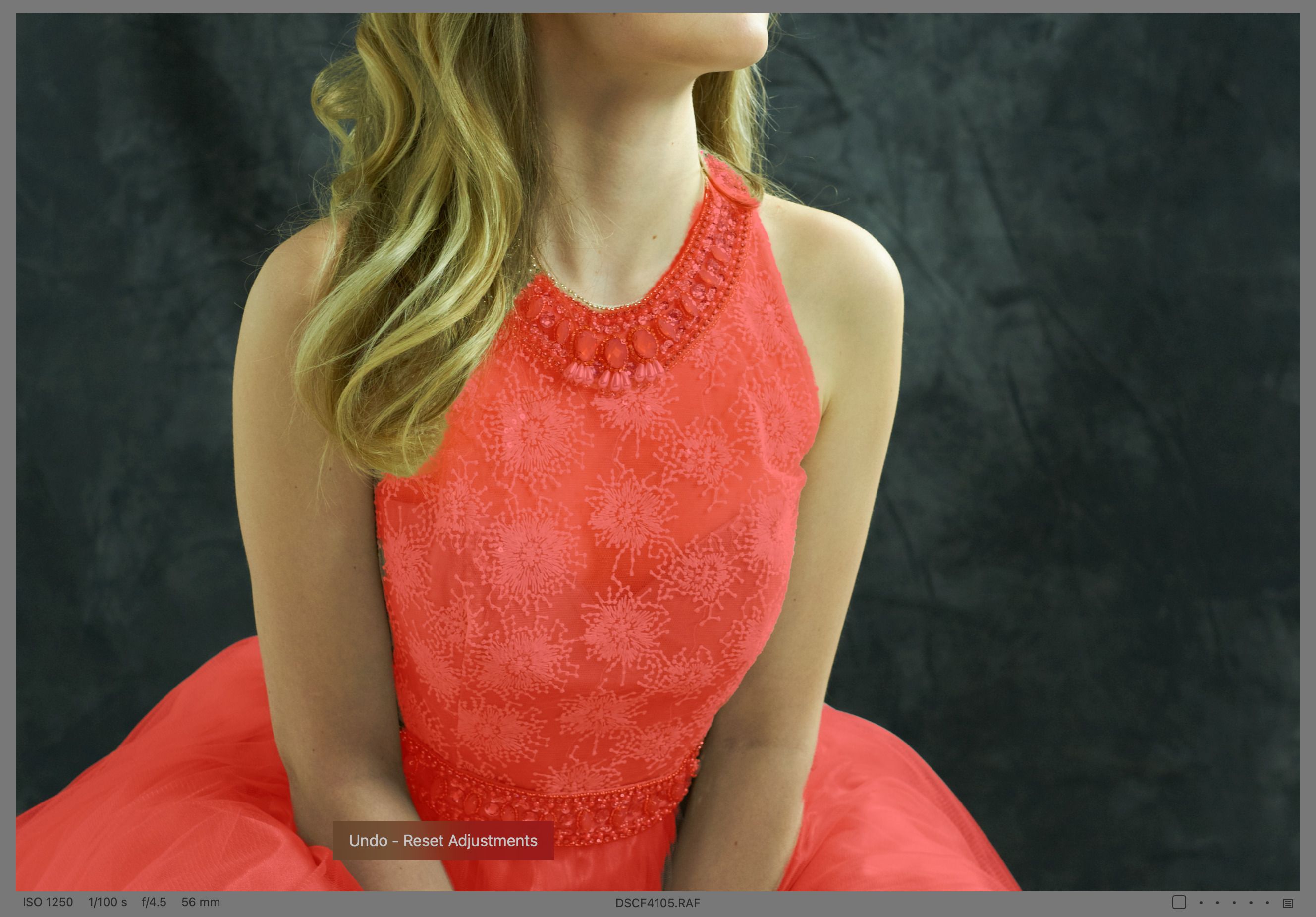
The AI masking tool People in Layers & Masks has gained a new option for clothing selection (Clothes). It only works reliably when the clothing is actually worn by someone:
A new feature under File → Export to Contact Sheet… allows you to export previews of selected photos as a grid layout on one or more pages, saved either as images or as PDF.
The Color Readouts tool can now display the color of a selected area in the HSL color space (in addition to RGB and LAB).
Capture One now supports the PSB format in addition to PSD — PSB is an extended version of Photoshop’s native format, allowing files larger than 2 GB. Capture One can import and export PSB files.
All Canon cameras with an RF mount now support lens profiles embedded in the photo’s metadata, allowing Capture One to apply the proper corrections when developing RAW files — even without a prebuilt profile. Unlike the Canon EOS R1 and R5 II, which received this support in version 16.6, this profile is (for now?) not applied automatically; you must select it manually in the Lens Correction tool (listed as Manufacturer Profile).
Several improvements also benefit current Fujifilm cameras, which now automatically read the crop format set in the camera, and support autofocus control in tethering via the Camera Focus and Focus Cursor Tool. It’s now also possible to change the Drive mode remotely (except on the X-T5, which uses a physical selector for that).
General camera support has been expanded with these models:
- Fujifilm X-T30 III
- Leica M EV1 (including USB tethering with live view)
- Leica D-Lux 8 “100 YEARS OF LEICA”
- OM System OM-5 II
- iPhone 16 (tethering via Capture One Mobile app)
- iPhone 17 Pro (Max) (including USB tethering via Capture One Mobile app)
- Canon C50 (including USB and Wi-Fi tethering with live view)
The new Capture One version is available as an automatic update for subscribers, while perpetual license holders must purchase an upgrade. A trial version can be downloaded from captureone.com.
If you’re using an older version and haven’t yet decided to upgrade to 16.7, do not open your catalogs or sessions in the trial version. Doing so would upgrade their internal structure, rendering them incompatible with older versions. Capture One will always ask for confirmation before upgrading a catalog, so accidental conversion isn’t a risk.
Do you want to master Capture One?
You can buy my e-book Capture One: Work Effectively — a complete guide to this professional photo management and editing application. The well-organized content helps you master the entire process, from importing and organizing photos to editing, managing metadata, and finally printing or exporting.
It also includes tips for those switching from other tools like Adobe Lightroom, as well as a detailed description of my own workflows that I’ve refined over years of using Capture One to process my photos.
The e-book is available in formats suitable for e-book readers and as a more than 400-page PDF.